# How to Deploy a Google AI Studio App Outside Google Cloud
> See how to get a Google AI Studio app into GitHub, set up GEMINI_API_KEY safely, and deploy it outside Google Cloud with Kuberns instead of Cloud Run.
- **Author**: harsh-kanani
- **Published**: 2026-08-27
- **Modified**: 2026-08-27
- **Category**: Deployment Guides
- **URL**: https://kuberns.com/blogs/deploy-google-ai-studio-app-outside-google-cloud/
---
The best way to deploy a Google AI Studio app outside Google Cloud is to get the exported React and Node.js app into a GitHub repository, either through AI Studio's built in GitHub sync or by pushing a ZIP export there yourself, and then connect that repository to a platform built for this, like Kuberns. Set `GEMINI_API_KEY` as an environment variable and deploy, without setting up a separate Google Cloud billing project first.
Google's own documentation only walks you through one deployment path: Cloud Run. That is not because the exported app requires Cloud Run specifically. It is because Google's deployment guide simply does not cover anywhere else, and builders are left running into billing setup requirements and failed deployments with no documented alternative in sight.
This guide helps you deploy the app you built on Google AI Studio and get it live without any complexity, using the GitHub repository you already have and without opening a Cloud Run billing project.
## TL;DR
- Google AI Studio exports a standard React frontend and Node.js backend, either through GitHub sync or a ZIP download you push to GitHub yourself.
- Google's official deployment guide only documents Cloud Run, across two billing tiers, and does not mention any other hosting option.
- Builders on Google's own developer forum report Cloud Run deployments failing, going unavailable for days, and requiring a billing project just to publish.
- Once exported, `GEMINI_API_KEY` has to be set as an environment variable in your own hosting environment, and it must stay server side.
- Kuberns connects the exported GitHub repository, handles the environment variable, and deploys the app without a Google Cloud billing project.
## The Problem With Google AI Studio's Official Deployment Path
When a builder finishes an app in Google AI Studio's Build mode, the only deployment option Google documents is Cloud Run. The official deploying guide describes two tiers: a free Starter Tier that lets you publish up to two full-stack apps without setting up a Google Cloud project or billing account, and a standard tier that requires a linked Google Cloud project with billing enabled. Nothing in that guide mentions GitHub, ZIP exports, or any platform other than Cloud Run.
That gap shows up constantly in Google's own community forum.
### Setting Up Google Cloud Billing Just to Deploy
One builder had shipped a React based web game using Gemini 3 and asked how to properly deploy it without paying for Google Cloud. They tried pushing the exported project to GitHub and deploying through [Vercel's free tier](https://kuberns.com/blogs/vercel-node-js/), only to hit a blank screen with no clear explanation of what had gone wrong. The frustration was not that free deployment is impossible. It is that Google's own documentation gives no guidance once you step outside Cloud Run, so builders are left improvising.

### When Cloud Run Deployment Fails or Goes Unavailable
Even builders who stay on the official path run into trouble. One thread describes Cloud Run service creation failing with a generic service is unavailable error, with no indication of what to fix. A more severe case describes being unable to publish or deploy from AI Studio for more than 48 hours, even though the existing live version of the app was healthy the entire time. That is not a configuration mistake on the builder's part. It is a platform side failure on infrastructure they have no control over.

None of this means the exported app itself needs Cloud Run. It means the friction sits entirely in Google's guidance and in Cloud Run's own reliability, not in any technical limitation of the code you built.
## What You Actually Get When You Export a Google AI Studio App
Before deciding where to host it, it helps to know exactly what AI Studio hands you when you export.
### The Tech Stack Behind Every AI Studio App
According to Google's own Build mode documentation, a typical AI Studio web app is generated as a full-stack environment with two parts. The client side is a web frontend, React by default. The server side is a Node.js runtime that allows for secure API calls, database connections, and npm package usage. This is a completely standard full-stack JavaScript project. There is nothing Cloud Run specific baked into the code itself, which is exactly why it can run anywhere that supports Node.js.
If you are new to running a Node.js app in production generally, the [Node.js deployment guide](https://kuberns.com/blogs/how-to-deploy-nodejs-app/) covers the basics that apply here too, from build commands to start scripts.
### GitHub Sync vs. ZIP Download
AI Studio gives you two ways to get your code out. GitHub sync connects your app to a GitHub repository for two way sync, so changes you prompt inside AI Studio push directly to your repository. This is the better option if you plan to keep iterating on the app inside AI Studio while also deploying it elsewhere, since your repository stays current automatically. The ZIP download option exports the generated code as a file you import into your own code editor. This suits a one time export, where you plan to take over development yourself and stop syncing with AI Studio going forward. Either way, the code needs to end up in a GitHub repository before you can connect it to a deployment platform like Kuberns, which deploys from a connected GitHub repository rather than an uploaded ZIP file.
Either path gets you to the same place: a Git repository containing a React frontend and a Node.js backend, ready to connect to any deployment platform that reads from GitHub.
## How to Safely Set GEMINI_API_KEY Outside AI Studio

This is the part most tutorials skip, and getting it wrong is a real security risk, not just an inconvenience.
### How AI Studio Handles the Key by Default
While your app lives inside AI Studio, Google handles the API key for you. When you create a new app that uses the Gemini API, AI Studio automatically configures your Gemini API key as a secret in the app's server-side environment. You never see it hardcoded anywhere, and you do not need to think about where it lives.
### What Changes Once You Export
That automatic handling stops the moment you export. Google's own documentation is explicit about this: once you download the code as a ZIP, you need to set up the `GEMINI_API_KEY` environment variable in your hosting environment yourself. Whatever platform you deploy to, adding this environment variable is a required step, not optional configuration.
For a broader look at handling secrets and environment variables correctly once an app leaves a managed environment like AI Studio, the [environment variables in production guide](https://kuberns.com/blogs/environment-variables-in-production/) walks through common mistakes worth avoiding.
### Keeping the Key Server-Side Only
Since your app's Gemini API calls are made from server-side code, the key is not exposed to end users, as long as you keep it that way. The mistake to avoid is pulling `GEMINI_API_KEY` into any client-side file, a frontend environment variable prefixed for browser exposure, or a hardcoded string in your React components. Every Gemini API call should route through your Node.js backend, with the key read only on the server. If you are unsure whether a variable is exposed to the browser, treat it as exposed and move the call server-side before deploying anywhere.
## How to Deploy Your Exported Google AI Studio App With Kuberns
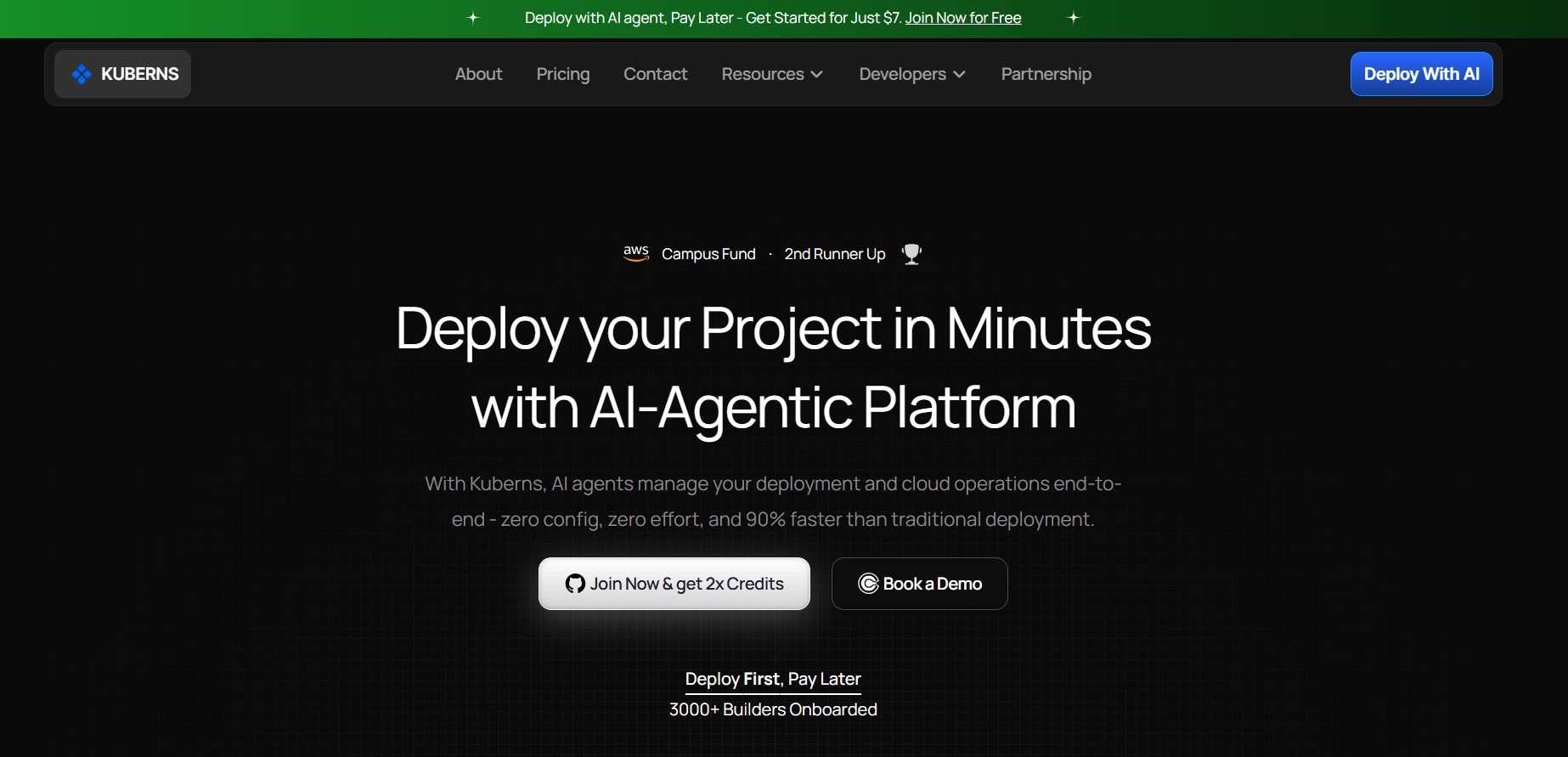
Once your code is in GitHub and you know where `GEMINI_API_KEY` needs to live, deploying is a short process.
### Step 1: Get Your Code Into GitHub
If you used AI Studio's GitHub sync, this is already done. If you downloaded a ZIP, initialize a Git repository in the extracted folder, commit the code, and push it to a new GitHub repository.
### Step 2: Connect the Repository to Kuberns
Sign up on Kuberns and connect your GitHub account. Select the repository containing your exported AI Studio app and choose the branch to deploy from. Kuberns scans the project and detects the frontend and backend services automatically, since it is a standard React and Node.js layout.
### Step 3: Add GEMINI_API_KEY as an Environment Variable
Before deploying, add `GEMINI_API_KEY` in your project's environment variable settings, along with any other secrets your app depends on, such as database connection strings if you added persistence beyond what AI Studio generated. This keeps the key server-side and out of your repository entirely.
### Step 4: Deploy and Verify
Trigger the deployment and watch the build logs as dependencies install and the app starts. Once it is live, test the parts of your app that call the Gemini API to confirm the key is being read correctly, and check that no key value appears anywhere in your browser's network requests or page source.
## Why This Beats Managing Cloud Run Yourself

Kuberns is an agentic AI platform for deployment. For an app that started in Google AI Studio, that mainly solves the two problems from earlier in this post. There is no Google Cloud billing project to set up before you can publish, since you are deploying to a separate platform entirely. There is no opaque service is unavailable error to wait out, since your deployment status, logs, and monitoring live in one place you can actually see.
Kuberns connects your GitHub repository, detects the frontend and backend automatically, and handles environment variables, SSL, and CI/CD without manual configuration. Plans start at $7, a trial option is available if you want to try the workflow before committing, and bundle packs offer additional savings as your usage grows.
This does not replace anything AI Studio does for building the app itself. Prompting, iterating, and generating the code still happens in AI Studio. What changes is where the finished app actually runs once you are done building it.
## Your Google AI Studio App Does Not Need to Live on Cloud Run
Google AI Studio's Build mode already hands you a portable app, a React frontend and a Node.js backend that can run anywhere Node.js runs. The friction builders run into, billing projects, service unavailable errors, days long outages, comes from Google's deployment guide only covering Cloud Run, not from any limitation in the code you exported.
If you want your app running somewhere you can actually see deployment status and logs, without setting up a Google Cloud billing project first, export it and connect it to Kuberns.
[Deploy your Google AI Studio app with agentic AI](https://dashboard.kuberns.com/)
 ## Frequently Asked Questions
### Can I deploy a Google AI Studio app without Google Cloud?
Yes. Google AI Studio lets you export the app you built through GitHub sync or a ZIP download. The exported project is a standard React and Node.js app, so it can run on any host that supports Node.js and environment variables, not only Cloud Run.
### Do I have to pay for Google Cloud to use an app built in Google AI Studio?
Not if you deploy it elsewhere. Google Cloud billing only becomes necessary if you use AI Studio's own Cloud Run deployment beyond its free Starter Tier limit of two apps. Exporting the app and hosting it on another platform avoids a Google Cloud billing project entirely.
### How do I export a Google AI Studio app to GitHub?
Inside AI Studio's Build mode, connect your app to a GitHub repository to enable two way sync, which pushes changes from AI Studio directly to your repository. You can also export the code as a ZIP file and push it to GitHub yourself.
### Where do I set the GEMINI_API_KEY after exporting my app?
Set it as an environment variable in whatever platform you deploy to. AI Studio configures it automatically as a secret while your app lives inside AI Studio, but once you export the project, you are responsible for setting `GEMINI_API_KEY` yourself in your hosting environment.
### Is it safe to expose GEMINI_API_KEY in frontend code?
No. `GEMINI_API_KEY` should only ever be read by your server-side code. Gemini API calls in an AI Studio app run through the Node.js backend, not the browser, so the key should stay in server-side environment variables and never be bundled into client-side JavaScript.
### Why does Google AI Studio deployment to Cloud Run fail or say service unavailable?
Builders on Google's own AI Studio forum have reported Cloud Run publishing failing with service unavailable errors, sometimes for more than 48 hours, even when the existing deployed version was healthy. These are platform side failures on Google's infrastructure, not something wrong with the exported app.
### What tech stack does a Google AI Studio app use?
A typical AI Studio web app has a React frontend by default and a Node.js server-side runtime that handles Gemini API calls, database connections, and npm packages. This is a standard full-stack JavaScript project, not a Google-specific format.
### Can I host a Google AI Studio app on Kuberns?
Yes. Since an exported Google AI Studio app is a standard React and Node.js project, Kuberns can connect to its GitHub repository, detect the services, and deploy it once `GEMINI_API_KEY` is added as an environment variable.
---
- [More Deployment Guides articles](https://kuberns.com/blogs/category/deployment-guides/1/)
- [All articles](https://kuberns.com/blogs/)
## Frequently Asked Questions
### Can I deploy a Google AI Studio app without Google Cloud?
Yes. Google AI Studio lets you export the app you built through GitHub sync or a ZIP download. The exported project is a standard React and Node.js app, so it can run on any host that supports Node.js and environment variables, not only Cloud Run.
### Do I have to pay for Google Cloud to use an app built in Google AI Studio?
Not if you deploy it elsewhere. Google Cloud billing only becomes necessary if you use AI Studio's own Cloud Run deployment beyond its free Starter Tier limit of two apps. Exporting the app and hosting it on another platform avoids a Google Cloud billing project entirely.
### How do I export a Google AI Studio app to GitHub?
Inside AI Studio's Build mode, connect your app to a GitHub repository to enable two way sync, which pushes changes from AI Studio directly to your repository. You can also export the code as a ZIP file and push it to GitHub yourself.
### Where do I set the GEMINI_API_KEY after exporting my app?
Set it as an environment variable in whatever platform you deploy to. AI Studio configures it automatically as a secret while your app lives inside AI Studio, but once you export the project, you are responsible for setting `GEMINI_API_KEY` yourself in your hosting environment.
### Is it safe to expose GEMINI_API_KEY in frontend code?
No. `GEMINI_API_KEY` should only ever be read by your server-side code. Gemini API calls in an AI Studio app run through the Node.js backend, not the browser, so the key should stay in server-side environment variables and never be bundled into client-side JavaScript.
### Why does Google AI Studio deployment to Cloud Run fail or say service unavailable?
Builders on Google's own AI Studio forum have reported Cloud Run publishing failing with service unavailable errors, sometimes for more than 48 hours, even when the existing deployed version was healthy. These are platform side failures on Google's infrastructure, not something wrong with the exported app.
### What tech stack does a Google AI Studio app use?
A typical AI Studio web app has a React frontend by default and a Node.js server-side runtime that handles Gemini API calls, database connections, and npm packages. This is a standard full-stack JavaScript project, not a Google-specific format.
### Can I host a Google AI Studio app on Kuberns?
Yes. Since an exported Google AI Studio app is a standard React and Node.js project, Kuberns can connect to its GitHub repository, detect the services, and deploy it once `GEMINI_API_KEY` is added as an environment variable.
---
- [More Deployment Guides articles](https://kuberns.com/blogs/category/deployment-guides/1/)
- [All articles](https://kuberns.com/blogs/)