# Before You Deploy Node.js on DigitalOcean, Know This
> How to deploy Node.js on DigitalOcean using a Droplet or App Platform, with PM2, Nginx, SSL setup explained and a faster AI-powered alternative compared.
- **Author**: manav-dobariya
- **Published**: 2026-06-12
- **Modified**: 2026-06-12
- **Category**: Deployment Guides
- **URL**: https://kuberns.com/blogs/deploy-nodejs-on-digitalocean/
---
You can deploy a Node.js app on DigitalOcean. There are two ways to do it: a Droplet, which is a Linux virtual machine you configure yourself, and App Platform, which is DigitalOcean's managed PaaS that deploys directly from your GitHub repo. Both work. But they come with setup requirements, cost realities, and operational overhead that most deployment guides skip entirely.
The PM2 process manager you need to keep your app alive. The Nginx reverse proxy config that breaks SSL if you get one line wrong. The App Platform pricing that jumps from $5 to $29 the moment you need autoscaling. These are not edge cases. They are the standard experience for developers deploying Node.js on DigitalOcean.
This guide covers what you will actually encounter on both deployment paths, the complete steps that work, and why developers who want to skip the server configuration are using [Kuberns](https://kuberns.com) instead. Kuberns deploys Node.js apps using an AI agent that detects your stack automatically, sets up HTTPS, and gets you live without touching a server. Ready to skip the server setup? Deploy your Node.js app with one click on Kuberns and get a live HTTPS URL in under 5 minutes.
## Limitations You Should Know Before You Deploy Node.js on DigitalOcean

Most Node.js deployment guides give you the happy path. They show you the commands, and stop before you hit the part where something breaks in production. Here is what actually matters before you commit to DigitalOcean for your Node.js app.
### A Droplet Is a Linux Server You Manage Yourself
A DigitalOcean Droplet is a raw Ubuntu (or other Linux) virtual machine. When you create one, you get a server with an IP address and nothing else. Node.js is not installed. PM2 is not installed. Nginx is not installed. SSL is not configured. Your firewall is open by default.
Every piece of the production stack is your responsibility to set up, maintain, and update. That includes Node.js version management, OS security patches, disk space monitoring, and crash recovery. If your app crashes at 2am on a Saturday, nothing brings it back automatically unless you have configured PM2 and set it up to restart on reboot.
For developers comfortable with Linux server administration, this is manageable. For teams who want to ship features rather than manage infrastructure, it is a significant ongoing cost. For a full picture of [what DigitalOcean offers for cloud hosting](https://kuberns.com/blogs/what-is-digitalocean/), the differences between Droplets and App Platform matter a lot before you choose.
### PM2 Goes Down and Takes Your App With It
Node.js does not run as a background service by default. If you start your app with `node server.js` and close your SSH session, the process ends. PM2 solves this by running your app as a daemon that survives SSH disconnections and server reboots.
But PM2 itself requires configuration. You need to install it globally, start your app through it, save the process list, and configure it to run on startup with `pm2 startup`. If you skip any of these steps, your app stops after a reboot. If PM2 encounters a bug or a corrupted process file, your app stops and does not restart.
PM2 is a solid tool but it is one more thing to know, configure, and debug. On a managed platform, the deployment runtime handles process management for you.
### Nginx and SSL Need Manual Configuration
Node.js listens on a port like 3000 by default. Running it directly on port 80 or 443 requires root privileges, which is a security risk. The standard solution is to put Nginx in front as a reverse proxy that forwards traffic from port 80 and 443 to your Node.js process.
Setting up Nginx correctly requires editing configuration files, testing the config syntax, enabling the site, and reloading the service. SSL with Let's Encrypt then requires installing Certbot, running it against your domain, and verifying that Nginx was updated correctly. A misconfigured Nginx block silently serves nothing while appearing to be running. Certbot certificates also expire every 90 days and need renewal, which usually works automatically but fails without warning when it does not.
> None of this is impossible. But it is a non-trivial amount of server administration that has nothing to do with your Node.js application. See [why your app works locally but breaks after deploy](https://kuberns.com/blogs/app-works-locally-fails-in-production/) for the class of errors this setup introduces.
### App Platform Costs Scale Faster Than Expected
DigitalOcean App Platform is simpler than a Droplet. You connect your GitHub repo, set your build command, and App Platform handles the deployment. The entry price is $5 per month on a shared CPU plan.
The problem is what happens when you need autoscaling. Autoscaling on App Platform requires a dedicated CPU plan. The cheapest dedicated plan is $29 per month for 1 vCPU and 512 MiB of RAM. The next step up is $34 per month for 1 GiB RAM. For a Node.js app serving real traffic with variable load, you are looking at $29 to $78 per month just for compute, before databases and bandwidth.
The $5 plan also has no manual or automatic scaling. One container, fixed resources, no way to handle a traffic spike without upgrading the plan entirely. For a detailed look at [DigitalOcean App Platform pricing](https://kuberns.com/blogs/digitalocean-pricing/) across all tiers, the cost jumps between plans are significant.
### No Zero-Downtime Deploys on Shared Plans
When you push new code to App Platform on a shared CPU plan, the old container goes down while the new one builds and starts. There is a gap where your app is unreachable. For production apps with real users, this means every deploy causes visible downtime.
Zero-downtime rolling deploys are available only on dedicated CPU plans. On Droplets, you would need to implement a blue-green deployment strategy yourself using multiple Droplets and a load balancer, which adds cost and complexity.
## How to Deploy Node.js on DigitalOcean

There are two deployment paths on DigitalOcean. Here is the complete setup for both.
### Option 1: Deploy Node.js on a DigitalOcean Droplet
This path gives you full control over the server. You install Node.js, manage the process with PM2, and put Nginx in front as a reverse proxy. Here is what the setup looks like from a fresh Droplet.
**Step 1: Create your Droplet and SSH in**
Log into the DigitalOcean dashboard and create a new Droplet. Select Ubuntu 22.04 LTS. A 1 vCPU / 1 GiB RAM Droplet at $6/mo is sufficient for a small Node.js app. Add your SSH key during setup, then connect once the Droplet is live.
Create a non-root sudo user before doing anything else. Running everything as root is a security risk you want to avoid from the start.
**Step 2: Install Node.js**
The recommended approach is nvm (Node Version Manager), which lets you install and switch Node.js versions without system-level conflicts. Install nvm, then pull the latest LTS release with `nvm install --lts`. Verify with `node -v` before moving on.
**Step 3: Start your app with PM2**
Install PM2 globally with `npm install -g pm2`. Clone your repository, run `npm install`, then start your app with `pm2 start server.js --name my-app`.
Critically: run `pm2 save` and then `pm2 startup` to register PM2 as a startup service. If you skip this step, your app stops on every server reboot and does not come back on its own.
**Step 4: Configure Nginx as a reverse proxy**
Install Nginx, then create a site config that proxies requests from port 80 to your Node.js port (usually 3000). The config sets the proxy headers, enables the site, and reloads Nginx. A misconfigured proxy block will serve nothing and give you no useful error, so test with `nginx -t` before reloading.
**Step 5: Add SSL with Let's Encrypt**
Install Certbot and run it against your domain. Certbot updates your Nginx config automatically to handle HTTPS and redirect HTTP traffic. Certificates renew every 90 days via a systemd timer. Once done, your app is live at `https://yourdomain.com`.
> For teams automating deploys on every push, see [how the best CI/CD tools handle Node.js pipelines](https://kuberns.com/blogs/best-cicd-tools/) to connect your Droplet to GitHub Actions or similar.
### Option 2: Deploy Node.js on DigitalOcean App Platform
App Platform removes the Droplet management layer. You connect your GitHub repo and DigitalOcean handles builds and deployments automatically.
**Step 1: Connect your repo**
Log into the DigitalOcean dashboard, navigate to App Platform, and click **Create App**. Select GitHub as the source, authorise access, and choose your Node.js repository and branch.
**Step 2: Configure build and run commands**
App Platform auto-detects Node.js projects. Verify the suggested settings:
- **Build command:** `npm install && npm run build` (or just `npm install` if there is no build step)
- **Run command:** `node server.js` (or `npm start`)
- **HTTP port:** the port your app listens on (default `3000` or `8080`)
If your app has a custom entry point, update the run command to match.
**Step 3: Set environment variables**
Under the **Environment Variables** section, add all variables your app needs. App Platform encrypts variables marked as secrets and injects them at runtime. Do not commit `.env` files to your repository.
**Step 4: Choose a plan and deploy**
Select your container plan. The $5/mo shared CPU plan works for testing and low-traffic apps. For production apps that need autoscaling, select a dedicated CPU plan starting at $29/mo.
Click **Create Resources**. App Platform builds your app, provisions HTTPS with a `ondigitalocean.com` subdomain, and deploys the container. Add a custom domain under the app settings after the initial deploy succeeds.
 ## What Developers Use Instead of DigitalOcean for Node.js
A Droplet gives you a server. App Platform gives you a managed container. Neither gives you a deployment experience where the platform does the work for you.
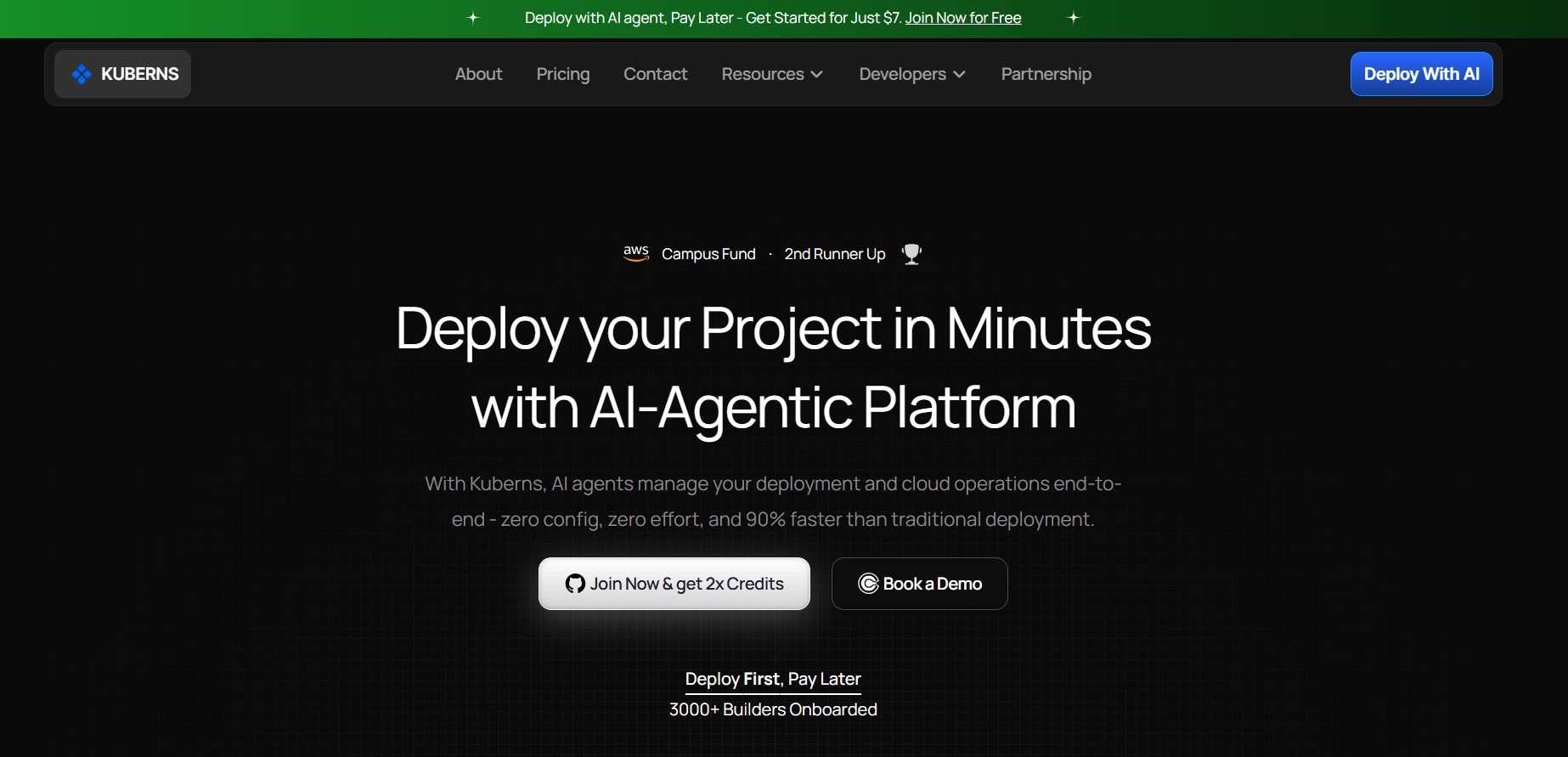
[Kuberns](https://kuberns.com) is an Agentic AI cloud platform built for developers who want their Node.js app live without touching a server. You connect your GitHub repo, and Kuberns takes it from there. For a full comparison of [how Node.js deployment differs across platforms](https://kuberns.com/blogs/how-to-deploy-nodejs-app/), the differences in setup time and ongoing effort are significant.
### Your Stack Is Auto-Detected
Kuberns reads your repository and identifies your Node.js version, framework, build command, and port automatically. There is no config file to write, no build spec to maintain, and no runtime to select manually. If your app runs locally with `npm start`, Kuberns deploys it without any changes.
### No Nginx, No PM2, No SSL Setup
The entire server configuration layer that a Droplet requires simply does not exist on Kuberns. Process management, HTTPS provisioning, reverse proxy configuration, and certificate renewal are handled by the platform. You get a live HTTPS URL after the first deploy with zero manual steps.
### CI/CD Is Built In
Every push to your connected branch triggers a new deployment automatically. There is no GitHub Actions workflow to write, no SSH action to configure, and no deployment script to maintain. Kuberns also handles zero-downtime rolling deploys on every plan, not just the expensive tiers.
### Autoscaling Without a Plan Upgrade
Kuberns scales based on real traffic. You are not locked into choosing between a $5 plan with fixed resources and a $29 plan with autoscaling. Resources adjust automatically as demand changes, and you pay for what you actually use. Teams save up to 40% on cloud infrastructure costs compared to managing their own AWS instances.
### Built on AWS, Without the AWS Complexity
Kuberns runs on AWS infrastructure, which means enterprise-grade uptime and global availability. But you never interact with AWS directly. No IAM roles, no security groups, no VPC configuration. The AWS power is there; the AWS complexity is not.
**Here is how the three options compare:**
| | DigitalOcean Droplet | DigitalOcean App Platform | Kuberns |
|---|---|---|---|
| **Setup required** | Full server config (Node, PM2, Nginx, SSL) | Minimal (connect repo + run command) | None (AI detects and configures) |
| **Node.js support** | Any version via nvm | Node 18, 20, 22 | Any version, auto-detected |
| **HTTPS** | Manual (Certbot) | Automatic | Automatic |
| **Autoscaling** | Manual (load balancer + multiple Droplets) | Dedicated plans only ($29/mo+) | Built-in, traffic-based |
| **Zero-downtime deploys** | Manual blue-green setup | Dedicated plans only | Included on all plans |
| **CI/CD** | Manual (GitHub Actions + SSH) | Built-in | Built-in |
| **Starting price** | $6/mo (Droplet) | $5/mo (shared, no scaling) | Pay-as-you-go |
| **SSH access needed** | Yes | No | No |
| **Process management** | PM2 (manual) | Managed | Managed by AI agent |
## Conclusion
DigitalOcean gives you real infrastructure for Node.js deployment. Droplets are flexible and cost-effective if you are comfortable managing a Linux server. App Platform removes the server layer but costs more once you need autoscaling and still requires you to understand your build and run configuration.
If the goal is to get your Node.js app into production quickly, reliably, and without spending time on Nginx configs, PM2 setup, and SSL management, Kuberns is the faster path. The AI agent handles everything that DigitalOcean requires you to do manually, and scales automatically as your traffic grows.
[Deploy your Node.js app on Kuberns](https://dashboard.kuberns.com/) and get a live HTTPS URL in under 5 minutes.
## What Developers Use Instead of DigitalOcean for Node.js

A Droplet gives you a server. App Platform gives you a managed container. Neither gives you a deployment experience where the platform does the work for you.
[Kuberns](https://kuberns.com) is an Agentic AI cloud platform built for developers who want their Node.js app live without touching a server. You connect your GitHub repo, and Kuberns takes it from there. For a full comparison of [how Node.js deployment differs across platforms](https://kuberns.com/blogs/how-to-deploy-nodejs-app/), the differences in setup time and ongoing effort are significant.
### Your Stack Is Auto-Detected
Kuberns reads your repository and identifies your Node.js version, framework, build command, and port automatically. There is no config file to write, no build spec to maintain, and no runtime to select manually. If your app runs locally with `npm start`, Kuberns deploys it without any changes.
### No Nginx, No PM2, No SSL Setup
The entire server configuration layer that a Droplet requires simply does not exist on Kuberns. Process management, HTTPS provisioning, reverse proxy configuration, and certificate renewal are handled by the platform. You get a live HTTPS URL after the first deploy with zero manual steps.
### CI/CD Is Built In
Every push to your connected branch triggers a new deployment automatically. There is no GitHub Actions workflow to write, no SSH action to configure, and no deployment script to maintain. Kuberns also handles zero-downtime rolling deploys on every plan, not just the expensive tiers.
### Autoscaling Without a Plan Upgrade
Kuberns scales based on real traffic. You are not locked into choosing between a $5 plan with fixed resources and a $29 plan with autoscaling. Resources adjust automatically as demand changes, and you pay for what you actually use. Teams save up to 40% on cloud infrastructure costs compared to managing their own AWS instances.
### Built on AWS, Without the AWS Complexity
Kuberns runs on AWS infrastructure, which means enterprise-grade uptime and global availability. But you never interact with AWS directly. No IAM roles, no security groups, no VPC configuration. The AWS power is there; the AWS complexity is not.
**Here is how the three options compare:**
| | DigitalOcean Droplet | DigitalOcean App Platform | Kuberns |
|---|---|---|---|
| **Setup required** | Full server config (Node, PM2, Nginx, SSL) | Minimal (connect repo + run command) | None (AI detects and configures) |
| **Node.js support** | Any version via nvm | Node 18, 20, 22 | Any version, auto-detected |
| **HTTPS** | Manual (Certbot) | Automatic | Automatic |
| **Autoscaling** | Manual (load balancer + multiple Droplets) | Dedicated plans only ($29/mo+) | Built-in, traffic-based |
| **Zero-downtime deploys** | Manual blue-green setup | Dedicated plans only | Included on all plans |
| **CI/CD** | Manual (GitHub Actions + SSH) | Built-in | Built-in |
| **Starting price** | $6/mo (Droplet) | $5/mo (shared, no scaling) | Pay-as-you-go |
| **SSH access needed** | Yes | No | No |
| **Process management** | PM2 (manual) | Managed | Managed by AI agent |
## Conclusion
DigitalOcean gives you real infrastructure for Node.js deployment. Droplets are flexible and cost-effective if you are comfortable managing a Linux server. App Platform removes the server layer but costs more once you need autoscaling and still requires you to understand your build and run configuration.
If the goal is to get your Node.js app into production quickly, reliably, and without spending time on Nginx configs, PM2 setup, and SSL management, Kuberns is the faster path. The AI agent handles everything that DigitalOcean requires you to do manually, and scales automatically as your traffic grows.
[Deploy your Node.js app on Kuberns](https://dashboard.kuberns.com/) and get a live HTTPS URL in under 5 minutes.
 ## Frequently Asked Questions
### Can I deploy a Node.js app on DigitalOcean?
Yes. DigitalOcean supports Node.js deployment through two paths: a Droplet (Linux VPS where you install Node.js, PM2, and Nginx yourself) and App Platform (a managed PaaS that builds and deploys from your GitHub repo automatically). Droplets give more control but require manual server management. App Platform is simpler but costs more as you scale.
### What is the best way to deploy Node.js on DigitalOcean?
For teams comfortable with Linux, a Droplet with PM2 and Nginx is cost-effective but requires manual setup. For teams who want a managed experience, App Platform is the easier path within DigitalOcean. For teams who want zero server configuration and AI-managed deployment, Kuberns deploys Node.js apps automatically from GitHub with HTTPS, autoscaling, and CI/CD built in.
### How do I run a Node.js app on a DigitalOcean Droplet?
Create an Ubuntu Droplet, SSH in, install Node.js via nvm, install PM2 globally, clone your repository, run your app with PM2, configure Nginx as a reverse proxy on port 80 or 443, and set up SSL with Certbot and Let's Encrypt. Each step requires command-line access and Linux knowledge.
### Does DigitalOcean App Platform support Node.js?
Yes. DigitalOcean App Platform supports Node.js apps deployed directly from GitHub or GitLab. It auto-detects your Node.js project, runs npm install and your build command, and deploys the app with HTTPS and a subdomain. Shared CPU plans start at $5 per month. Autoscaling requires dedicated CPU plans starting at $29 per month.
### How much does it cost to host a Node.js app on DigitalOcean?
A basic Droplet for Node.js hosting starts at $6 per month for 1 vCPU and 1 GiB RAM. DigitalOcean App Platform starts at $5 per month for shared CPU. If you need autoscaling, dedicated CPU plans on App Platform start at $29 per month. Additional costs include managed databases, load balancers, and outbound bandwidth beyond the included allowance.
### What is PM2 and why do I need it for DigitalOcean Node.js deployment?
PM2 is a process manager for Node.js applications. On a Droplet, your Node.js app stops running the moment you close your SSH session or the server reboots. PM2 keeps your app running as a background daemon, restarts it if it crashes, and starts it automatically after a server reboot. Without PM2 or a similar process manager, your app will not survive a server restart.
### Do I need Nginx to deploy Node.js on DigitalOcean?
On a Droplet, Nginx is strongly recommended. Node.js listens on a port like 3000 by default, and running it directly on port 80 or 443 requires root privileges, which is a security risk. Nginx sits in front as a reverse proxy, forwarding traffic from port 80 and 443 to your Node.js process. It also handles SSL termination, static file serving, and connection management more efficiently than Node.js alone.
### How do I add SSL to a Node.js app on DigitalOcean?
On a Droplet, use Certbot with the Let's Encrypt certificate authority. Install Certbot, run `certbot --nginx -d yourdomain.com`, and Certbot automatically configures Nginx to serve your app over HTTPS. Certificates renew automatically every 90 days. On App Platform, SSL is provisioned automatically for your default subdomain and any custom domains you add.
### What are the limitations of DigitalOcean for Node.js apps?
On Droplets, you manage the full server stack yourself including Node.js version, PM2, Nginx, SSL, firewall rules, and OS updates. App Platform is more managed but does not support autoscaling on shared CPU plans, and costs jump to $29 per month minimum for dedicated plans with autoscaling. Neither option gives you zero-downtime deploys on the cheapest plan.
### Is Kuberns better than DigitalOcean for Node.js deployment?
For teams who want to avoid server configuration, Kuberns is a strong alternative. Kuberns detects your Node.js stack automatically, deploys from GitHub in under 5 minutes, provisions HTTPS, handles autoscaling, and includes CI/CD without any configuration files. There is no Nginx to configure, no PM2 to manage, and no server to SSH into.
---
- [More Deployment Guides articles](https://kuberns.com/blogs/category/deployment-guides/1/)
- [All articles](https://kuberns.com/blogs/)
## Frequently Asked Questions
### Can I deploy a Node.js app on DigitalOcean?
Yes. DigitalOcean supports Node.js deployment through two paths: a Droplet (Linux VPS where you install Node.js, PM2, and Nginx yourself) and App Platform (a managed PaaS that builds and deploys from your GitHub repo automatically). Droplets give more control but require manual server management. App Platform is simpler but costs more as you scale.
### What is the best way to deploy Node.js on DigitalOcean?
For teams comfortable with Linux, a Droplet with PM2 and Nginx is cost-effective but requires manual setup. For teams who want a managed experience, App Platform is the easier path within DigitalOcean. For teams who want zero server configuration and AI-managed deployment, Kuberns deploys Node.js apps automatically from GitHub with HTTPS, autoscaling, and CI/CD built in.
### How do I run a Node.js app on a DigitalOcean Droplet?
Create an Ubuntu Droplet, SSH in, install Node.js via nvm, install PM2 globally, clone your repository, run your app with PM2, configure Nginx as a reverse proxy on port 80 or 443, and set up SSL with Certbot and Let's Encrypt. Each step requires command-line access and Linux knowledge.
### Does DigitalOcean App Platform support Node.js?
Yes. DigitalOcean App Platform supports Node.js apps deployed directly from GitHub or GitLab. It auto-detects your Node.js project, runs npm install and your build command, and deploys the app with HTTPS and a subdomain. Shared CPU plans start at $5 per month. Autoscaling requires dedicated CPU plans starting at $29 per month.
### How much does it cost to host a Node.js app on DigitalOcean?
A basic Droplet for Node.js hosting starts at $6 per month for 1 vCPU and 1 GiB RAM. DigitalOcean App Platform starts at $5 per month for shared CPU. If you need autoscaling, dedicated CPU plans on App Platform start at $29 per month. Additional costs include managed databases, load balancers, and outbound bandwidth beyond the included allowance.
### What is PM2 and why do I need it for DigitalOcean Node.js deployment?
PM2 is a process manager for Node.js applications. On a Droplet, your Node.js app stops running the moment you close your SSH session or the server reboots. PM2 keeps your app running as a background daemon, restarts it if it crashes, and starts it automatically after a server reboot. Without PM2 or a similar process manager, your app will not survive a server restart.
### Do I need Nginx to deploy Node.js on DigitalOcean?
On a Droplet, Nginx is strongly recommended. Node.js listens on a port like 3000 by default, and running it directly on port 80 or 443 requires root privileges, which is a security risk. Nginx sits in front as a reverse proxy, forwarding traffic from port 80 and 443 to your Node.js process. It also handles SSL termination, static file serving, and connection management more efficiently than Node.js alone.
### How do I add SSL to a Node.js app on DigitalOcean?
On a Droplet, use Certbot with the Let's Encrypt certificate authority. Install Certbot, run `certbot --nginx -d yourdomain.com`, and Certbot automatically configures Nginx to serve your app over HTTPS. Certificates renew automatically every 90 days. On App Platform, SSL is provisioned automatically for your default subdomain and any custom domains you add.
### What are the limitations of DigitalOcean for Node.js apps?
On Droplets, you manage the full server stack yourself including Node.js version, PM2, Nginx, SSL, firewall rules, and OS updates. App Platform is more managed but does not support autoscaling on shared CPU plans, and costs jump to $29 per month minimum for dedicated plans with autoscaling. Neither option gives you zero-downtime deploys on the cheapest plan.
### Is Kuberns better than DigitalOcean for Node.js deployment?
For teams who want to avoid server configuration, Kuberns is a strong alternative. Kuberns detects your Node.js stack automatically, deploys from GitHub in under 5 minutes, provisions HTTPS, handles autoscaling, and includes CI/CD without any configuration files. There is no Nginx to configure, no PM2 to manage, and no server to SSH into.
---
- [More Deployment Guides articles](https://kuberns.com/blogs/category/deployment-guides/1/)
- [All articles](https://kuberns.com/blogs/)