# How to Deploy a WordPress App in 2026 (Complete Guide)
> Learn how to deploy a WordPress app in 2026 with zero server setup. Step-by-step guide using Kuberns AI. No cPanel, no SSH, no Nginx config required.
- **Author**: omkar-anbhule
- **Published**: 2026-04-30
- **Modified**: 2026-04-30
- **Category**: Deployment Guides
- **URL**: https://kuberns.com/blogs/how-to-deploy-wordpress-app/
---
WordPress powers over 40% of the web. Getting it live, however, is a different story.
The traditional path goes like this: pick a shared hosting plan, navigate cPanel, set up a MySQL database, upload files via FTP, edit `wp-config.php` directly on the server, configure Nginx or Apache, sort out SSL with Certbot, and hope nothing breaks when you push an update. Even managed WordPress hosts still lock you into proprietary dashboards, opaque pricing, and limited control over your actual server environment.
There is a faster way to do this in 2026.
[Kuberns](https://kuberns.com/) is an agentic AI deployment platform built on AWS. You push your WordPress codebase to GitHub, connect the repo, add your environment variables, and click Deploy. The platform detects PHP, installs dependencies, provisions compute, issues SSL, and sets up automatic redeployment on every future commit. Your site is live in under five minutes.
**What this guide covers:**
- What to prepare before deploying WordPress
- Step-by-step deployment on Kuberns
- Platform comparison for WordPress hosting in 2026
- Common deployment issues and how to fix them
## Before You Deploy: Two Things to Confirm
**1. Your WordPress codebase is in a GitHub repository**
Kuberns deploys from GitHub. Push your full WordPress project (including `wp-content`, plugins, and themes) to a repository. If you are starting fresh, use the official [WordPress GitHub mirror](https://github.com/WordPress/WordPress) as a base or scaffold a new project locally.
**2. You have a MySQL database ready**
WordPress requires MySQL or MariaDB. Set up a managed database before deploying so you have the connection credentials on hand. Good options:
- **PlanetScale** for serverless MySQL with a generous free tier
- **Amazon RDS for MySQL** for production workloads on the same AWS infrastructure as Kuberns
- **Aiven for MySQL** for a managed option with multi-region support
That is all you need. Kuberns handles everything else.
## How to Deploy a WordPress App on Kuberns (Step by Step)
[Kuberns](https://kuberns.com/) detects PHP from your repository, installs Composer dependencies if present, serves your WordPress files, provisions AWS compute, issues SSL, and wires up CI/CD automatically.
### Step 1: Create Your Kuberns Account
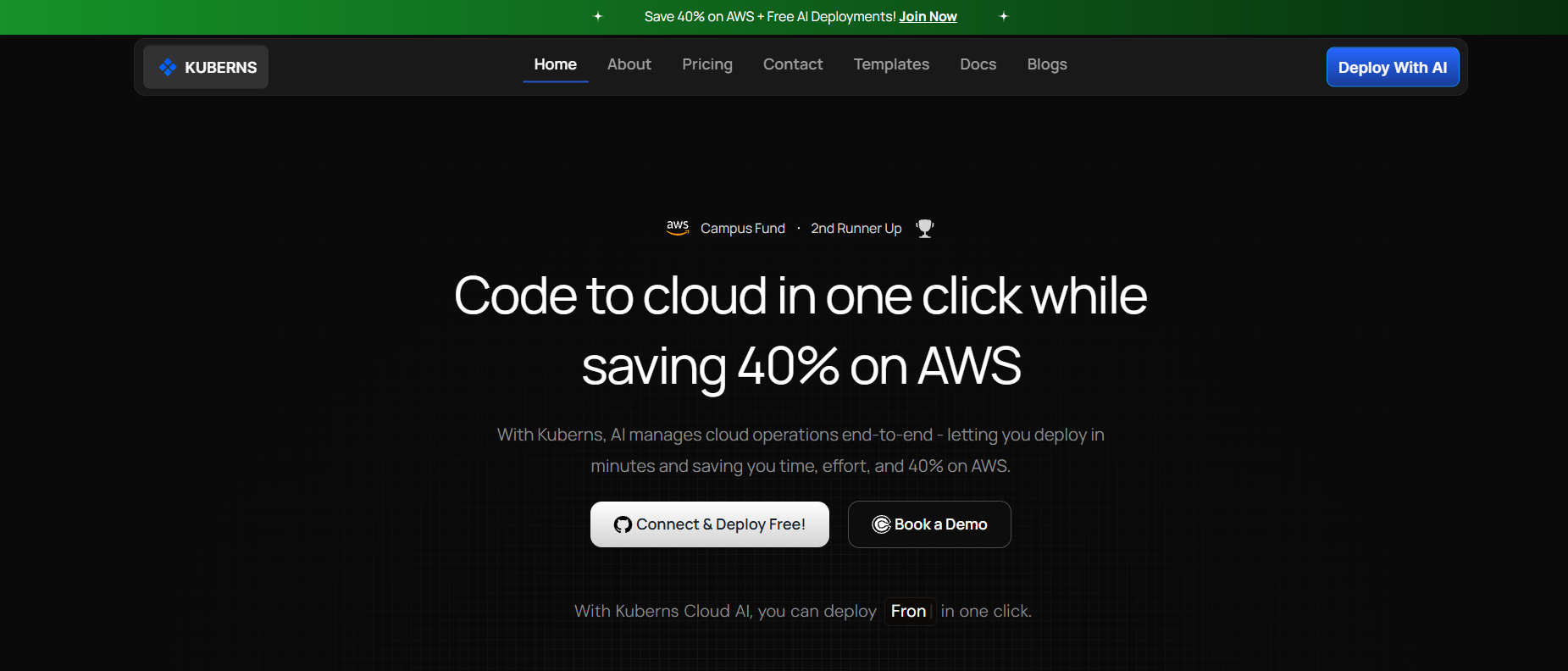
Go to [kuberns.com](https://kuberns.com/) and click **Deploy for Free**. Create your account and verify your phone number.
Kuberns has a free tier to start. After that, $7 gets you $14 in compute credits (2x value). [See all pricing tiers here](https://kuberns.com/pricing/).
### Step 2: Connect Your GitHub Repository
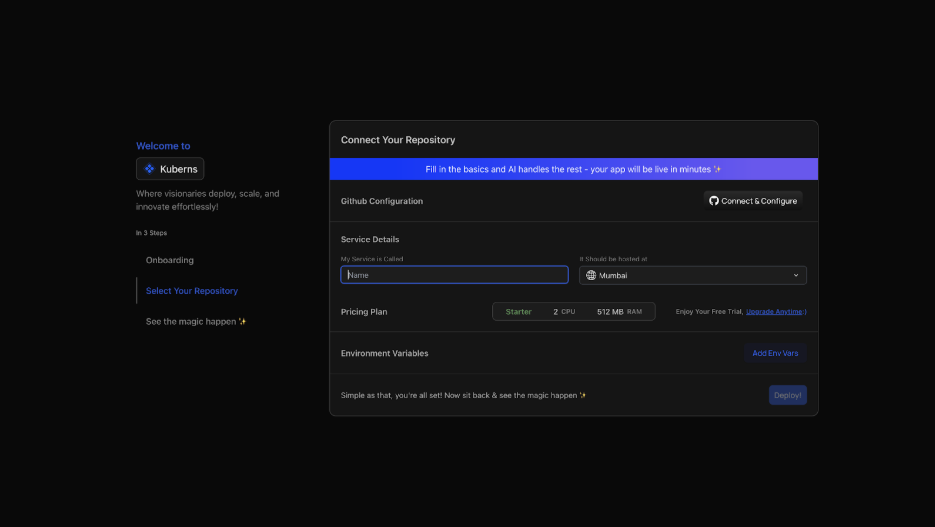
On the **Creating a Service** page, connect your GitHub account and select the repository containing your WordPress project.
- Click **Connect and Configure** and authorize Kuberns access to your repositories
- Select your repository and the branch you want to deploy (typically `main`)
- Kuberns AI scans your project, detects PHP from your file structure, and identifies the web root automatically
### Step 3: Add Environment Variables

Before clicking Deploy, navigate to the **Environment** section and add your WordPress configuration:
- Click **Add Env Vars** to add key-value pairs manually, or
- Click **Upload .env file** to import all variables at once
For a WordPress deployment, add:
| Variable | Description |
|---|---|
| `DB_NAME` | Your MySQL database name |
| `DB_USER` | Your MySQL username |
| `DB_PASSWORD` | Your MySQL password |
| `DB_HOST` | Your MySQL host (e.g. `db.example.com:3306`) |
| `AUTH_KEY` | WordPress authentication key |
| `SECURE_AUTH_KEY` | WordPress secure auth key |
| `LOGGED_IN_KEY` | WordPress logged-in key |
| `NONCE_KEY` | WordPress nonce key |
| `WP_DEBUG` | Set to `false` for production |
Kuberns encrypts all values at rest. They never appear in build logs or deployment output.
### Step 4: Click Deploy
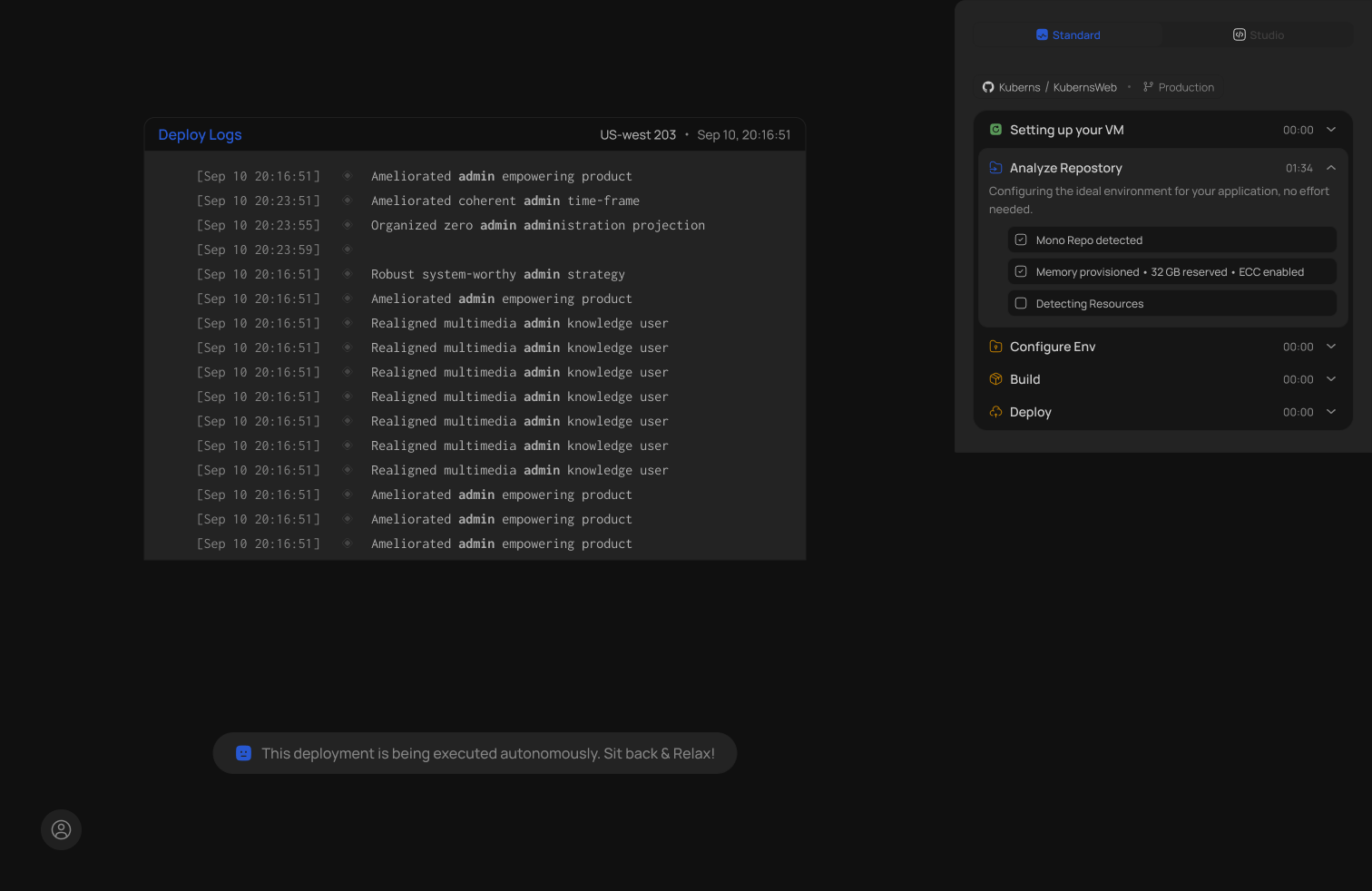
Click **Deploy**. Kuberns agentic AI takes over:
- Clones your repository from GitHub
- Detects PHP and sets up the runtime environment
- Installs Composer dependencies if a `composer.json` is present
- Mounts your WordPress files and sets the correct web root
- Injects all environment variables at runtime
- Provisions AWS compute in your chosen region
- Issues an SSL certificate and assigns a live HTTPS URL
- Enables monitoring, logging, and AI-driven auto-scaling
- Sets up CI/CD so every future push to the connected branch triggers an automatic redeploy
### Step 5: Your WordPress Site is Live
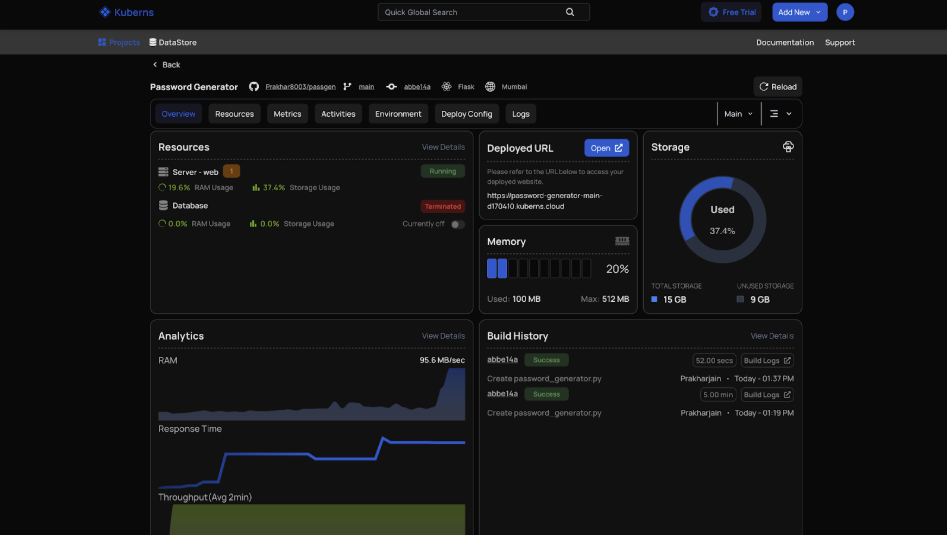
Your WordPress site is live in under five minutes. From the Kuberns dashboard you can:
- Open your deployed HTTPS URL and complete the WordPress installation wizard
- View live usage stats and resource consumption
- Check real-time logs and build history
- Update environment variables without redeploying
- Monitor AI-driven auto-scaling metrics
[Deploy your WordPress site on Kuberns →](https://dashboard.kuberns.com)
## Completing the WordPress Setup After Deployment
When you visit your live URL for the first time, WordPress will run its installation wizard if it has not already been configured. Complete the following:
1. Select your language
2. Enter your site title, admin username, and admin email
3. WordPress reads the database credentials from the environment variables you set, so connection happens automatically
4. Click **Install WordPress** and log in to `yoursite.com/wp-admin`
If the database is already populated from a previous environment, WordPress skips the wizard and loads your existing site directly.
### Updating WordPress URL settings
In `wp-admin`, go to **Settings > General** and update **WordPress Address** and **Site Address** to your live Kuberns URL. This ensures redirects, media URLs, and login links all resolve correctly.
 ## WordPress Hosting Platform Comparison (2026)
| Platform | Docker required | Git-based deploy | Free tier | Auto-scaling | Starting price | Best for |
|---|---|---|---|---|---|---|
| **Kuberns** | No | Yes (GitHub) | Yes, free credits | Yes, AI-driven | $7/mo | Developers who want full control without DevOps |
| WP Engine | No | Yes | No | Limited | $25/mo | Agencies on managed WordPress |
| Kinsta | No | Yes | No | Yes | $35/mo | High-traffic managed WordPress |
| Render | Optional | Yes | Yes (sleeps) | Manual | $7/mo | Prototypes |
| DigitalOcean App Platform | Optional | Yes | No | Manual | $5/mo | Teams with DevOps experience |
| Shared hosting (Bluehost etc.) | No | No | No | No | $3/mo | Beginners with simple blogs |
Kuberns gives you the developer-friendly Git-based workflow of Render or DigitalOcean App Platform, with auto-scaling and production-grade AWS infrastructure, at a competitive price. Unlike shared hosting, you get a dedicated containerized environment with no noisy neighbors.
For more on how Kuberns compares to traditional cloud providers, see the [DigitalOcean alternatives guide](https://kuberns.com/blogs/digitalocean-alternatives/) and the [best cloud hosting for freelancers and agencies guide](https://kuberns.com/blogs/cloud-hosting-for-freelancers-and-agencies/).
## Common WordPress Deployment Issues and Fixes
**White screen of death after deployment**
This usually means a PHP error is being suppressed. Temporarily set `WP_DEBUG` to `true` in your environment variables and redeploy to see the actual error in the Kuberns logs. The most common causes are a missing `DB_HOST` variable or a plugin incompatibility.
**Database connection error on first load**
Double-check that `DB_HOST`, `DB_NAME`, `DB_USER`, and `DB_PASSWORD` are all set correctly in the Kuberns environment tab. Also confirm that your MySQL database allows incoming connections from external IPs, or whitelist the Kuberns deployment IP if your provider uses IP allowlists.
**Media uploads not persisting after redeploy**
Container-based deployments do not persist files written to disk between deploys by default. For WordPress media uploads, use a plugin like WP Offload Media to send all uploads directly to Amazon S3 or another object storage service. This keeps your deployment stateless and your media always available.
**WordPress admin redirect loop**
This happens when the `siteurl` or `home` values in the database do not match the URL Kuberns assigned. Fix it by running the following SQL on your database:
```sql
UPDATE wp_options SET option_value = 'https://your-kuberns-url.com' WHERE option_name = 'siteurl';
UPDATE wp_options SET option_value = 'https://your-kuberns-url.com' WHERE option_name = 'home';
```
Then update the values again in `wp-admin > Settings > General` after logging in.
**Plugins installed via wp-admin disappear after redeploy**
Because Kuberns deploys from your GitHub repository, any files added directly through wp-admin (plugins, themes, uploads) will not persist after the next deploy unless they are committed to your repo. Adopt a workflow where you install and test plugins locally, commit them to Git, and let Kuberns deploy the update.
## Why Teams Deploy WordPress on Kuberns
The traditional WordPress hosting stack was designed for a different era. Shared hosting, cPanel, FTP uploads, and manual SSL renewals were the norm when WordPress launched. In 2026, developers expect Git-based workflows, environment variable management, automatic SSL, and CI/CD pipelines as baseline features.
Kuberns delivers all of that without the complexity of managing your own server:
- **No server administration.** No SSH, no Nginx config, no PM2 processes to babysit.
- **Environment-based config.** Credentials stay out of your codebase and never get committed to Git by accident.
- **CI/CD on every push.** Update a plugin, commit, push. Kuberns deploys automatically. No manual FTP or file manager required.
- **AI-driven auto-scaling.** Traffic spikes on your WordPress site are handled automatically without you touching a settings panel.
- **Built on AWS.** Your site runs on the same infrastructure as large-scale SaaS products, with better reliability than shared hosting at a fraction of the cost of managed WordPress hosts like WP Engine.
If you are running other PHP-based apps alongside WordPress, the [PHP deployment guide](https://kuberns.com/blogs/deploy-php-app/) covers the broader PHP ecosystem. For full-stack deployments that include a separate frontend, the [full-stack app deployment guide](https://kuberns.com/blogs/deploy-full-stack-app/) walks through connecting front end and back end on Kuberns.
## WordPress Hosting Platform Comparison (2026)
| Platform | Docker required | Git-based deploy | Free tier | Auto-scaling | Starting price | Best for |
|---|---|---|---|---|---|---|
| **Kuberns** | No | Yes (GitHub) | Yes, free credits | Yes, AI-driven | $7/mo | Developers who want full control without DevOps |
| WP Engine | No | Yes | No | Limited | $25/mo | Agencies on managed WordPress |
| Kinsta | No | Yes | No | Yes | $35/mo | High-traffic managed WordPress |
| Render | Optional | Yes | Yes (sleeps) | Manual | $7/mo | Prototypes |
| DigitalOcean App Platform | Optional | Yes | No | Manual | $5/mo | Teams with DevOps experience |
| Shared hosting (Bluehost etc.) | No | No | No | No | $3/mo | Beginners with simple blogs |
Kuberns gives you the developer-friendly Git-based workflow of Render or DigitalOcean App Platform, with auto-scaling and production-grade AWS infrastructure, at a competitive price. Unlike shared hosting, you get a dedicated containerized environment with no noisy neighbors.
For more on how Kuberns compares to traditional cloud providers, see the [DigitalOcean alternatives guide](https://kuberns.com/blogs/digitalocean-alternatives/) and the [best cloud hosting for freelancers and agencies guide](https://kuberns.com/blogs/cloud-hosting-for-freelancers-and-agencies/).
## Common WordPress Deployment Issues and Fixes
**White screen of death after deployment**
This usually means a PHP error is being suppressed. Temporarily set `WP_DEBUG` to `true` in your environment variables and redeploy to see the actual error in the Kuberns logs. The most common causes are a missing `DB_HOST` variable or a plugin incompatibility.
**Database connection error on first load**
Double-check that `DB_HOST`, `DB_NAME`, `DB_USER`, and `DB_PASSWORD` are all set correctly in the Kuberns environment tab. Also confirm that your MySQL database allows incoming connections from external IPs, or whitelist the Kuberns deployment IP if your provider uses IP allowlists.
**Media uploads not persisting after redeploy**
Container-based deployments do not persist files written to disk between deploys by default. For WordPress media uploads, use a plugin like WP Offload Media to send all uploads directly to Amazon S3 or another object storage service. This keeps your deployment stateless and your media always available.
**WordPress admin redirect loop**
This happens when the `siteurl` or `home` values in the database do not match the URL Kuberns assigned. Fix it by running the following SQL on your database:
```sql
UPDATE wp_options SET option_value = 'https://your-kuberns-url.com' WHERE option_name = 'siteurl';
UPDATE wp_options SET option_value = 'https://your-kuberns-url.com' WHERE option_name = 'home';
```
Then update the values again in `wp-admin > Settings > General` after logging in.
**Plugins installed via wp-admin disappear after redeploy**
Because Kuberns deploys from your GitHub repository, any files added directly through wp-admin (plugins, themes, uploads) will not persist after the next deploy unless they are committed to your repo. Adopt a workflow where you install and test plugins locally, commit them to Git, and let Kuberns deploy the update.
## Why Teams Deploy WordPress on Kuberns
The traditional WordPress hosting stack was designed for a different era. Shared hosting, cPanel, FTP uploads, and manual SSL renewals were the norm when WordPress launched. In 2026, developers expect Git-based workflows, environment variable management, automatic SSL, and CI/CD pipelines as baseline features.
Kuberns delivers all of that without the complexity of managing your own server:
- **No server administration.** No SSH, no Nginx config, no PM2 processes to babysit.
- **Environment-based config.** Credentials stay out of your codebase and never get committed to Git by accident.
- **CI/CD on every push.** Update a plugin, commit, push. Kuberns deploys automatically. No manual FTP or file manager required.
- **AI-driven auto-scaling.** Traffic spikes on your WordPress site are handled automatically without you touching a settings panel.
- **Built on AWS.** Your site runs on the same infrastructure as large-scale SaaS products, with better reliability than shared hosting at a fraction of the cost of managed WordPress hosts like WP Engine.
If you are running other PHP-based apps alongside WordPress, the [PHP deployment guide](https://kuberns.com/blogs/deploy-php-app/) covers the broader PHP ecosystem. For full-stack deployments that include a separate frontend, the [full-stack app deployment guide](https://kuberns.com/blogs/deploy-full-stack-app/) walks through connecting front end and back end on Kuberns.
 ## Frequently Asked Questions
**Do I need to configure Nginx or Apache to deploy WordPress on Kuberns?**
No. Kuberns handles the web server layer automatically. You push your PHP files to GitHub, and the platform sets up the runtime environment, web server configuration, and SSL without any input from you.
**Can I migrate an existing WordPress site to Kuberns?**
Yes. Export your database using phpMyAdmin or WP CLI, push your WordPress files to a GitHub repository, import the database to your managed MySQL provider, and deploy on Kuberns. Update the `siteurl` and `home` values in the database to your new Kuberns URL and you are live.
**Is Kuberns suitable for high-traffic WordPress sites?**
Yes. Kuberns is built on AWS and uses AI-driven auto-scaling to handle traffic spikes automatically. It is designed for production workloads, not just development environments.
**How do I handle WordPress cron jobs on Kuberns?**
Disable the default WP-Cron and use a real cron job instead. In `wp-config.php`, set `define('DISABLE_WP_CRON', true);` and configure a scheduled HTTP request to `yoursite.com/wp-cron.php?doing_wp_cron` using a service like EasyCron or a server-side cron.
**Can I run WooCommerce on Kuberns?**
Yes. WooCommerce is a WordPress plugin and deploys as part of your WordPress codebase. For production WooCommerce stores, use a managed MySQL database (Amazon RDS is a solid choice), offload media to S3 using WP Offload Media, and ensure your environment variables include all WooCommerce payment gateway credentials.
**What PHP version does Kuberns use for WordPress?**
Kuberns supports all current PHP versions. Specify your required version in a `.php-version` file or through the runtime configuration in the Kuberns dashboard. WordPress 6.x officially recommends PHP 8.1 or higher.
---
- [More Deployment Guides articles](https://kuberns.com/blogs/category/deployment-guides/1/)
- [All articles](https://kuberns.com/blogs/)
## Frequently Asked Questions
**Do I need to configure Nginx or Apache to deploy WordPress on Kuberns?**
No. Kuberns handles the web server layer automatically. You push your PHP files to GitHub, and the platform sets up the runtime environment, web server configuration, and SSL without any input from you.
**Can I migrate an existing WordPress site to Kuberns?**
Yes. Export your database using phpMyAdmin or WP CLI, push your WordPress files to a GitHub repository, import the database to your managed MySQL provider, and deploy on Kuberns. Update the `siteurl` and `home` values in the database to your new Kuberns URL and you are live.
**Is Kuberns suitable for high-traffic WordPress sites?**
Yes. Kuberns is built on AWS and uses AI-driven auto-scaling to handle traffic spikes automatically. It is designed for production workloads, not just development environments.
**How do I handle WordPress cron jobs on Kuberns?**
Disable the default WP-Cron and use a real cron job instead. In `wp-config.php`, set `define('DISABLE_WP_CRON', true);` and configure a scheduled HTTP request to `yoursite.com/wp-cron.php?doing_wp_cron` using a service like EasyCron or a server-side cron.
**Can I run WooCommerce on Kuberns?**
Yes. WooCommerce is a WordPress plugin and deploys as part of your WordPress codebase. For production WooCommerce stores, use a managed MySQL database (Amazon RDS is a solid choice), offload media to S3 using WP Offload Media, and ensure your environment variables include all WooCommerce payment gateway credentials.
**What PHP version does Kuberns use for WordPress?**
Kuberns supports all current PHP versions. Specify your required version in a `.php-version` file or through the runtime configuration in the Kuberns dashboard. WordPress 6.x officially recommends PHP 8.1 or higher.
---
- [More Deployment Guides articles](https://kuberns.com/blogs/category/deployment-guides/1/)
- [All articles](https://kuberns.com/blogs/)